Stream Music Without Uploading to Cloud: 4 Ways for Your DJ Library
How to stream music without uploading to a cloud: USB copies, a home server like Navidrome or Jellyfin, or streaming your DJ library from your own computer.

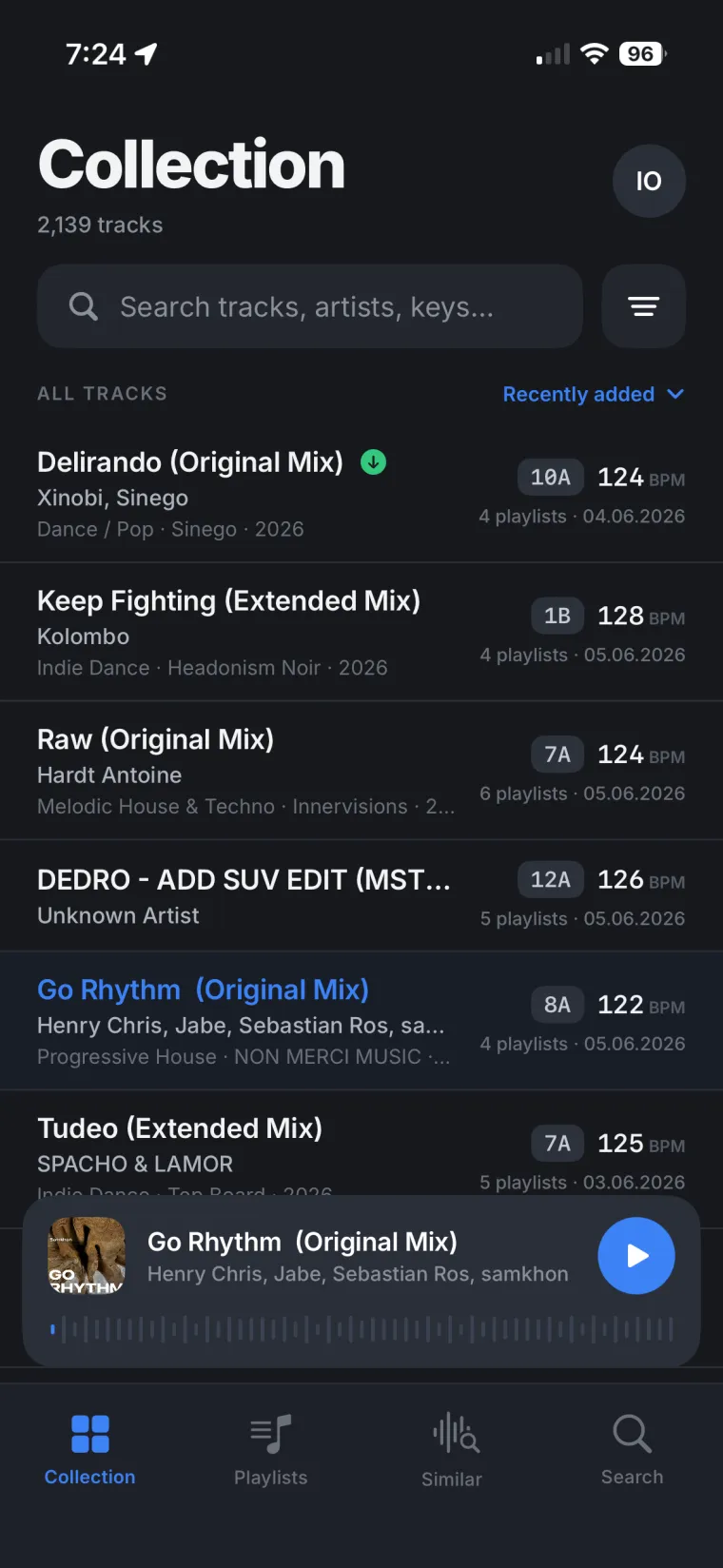
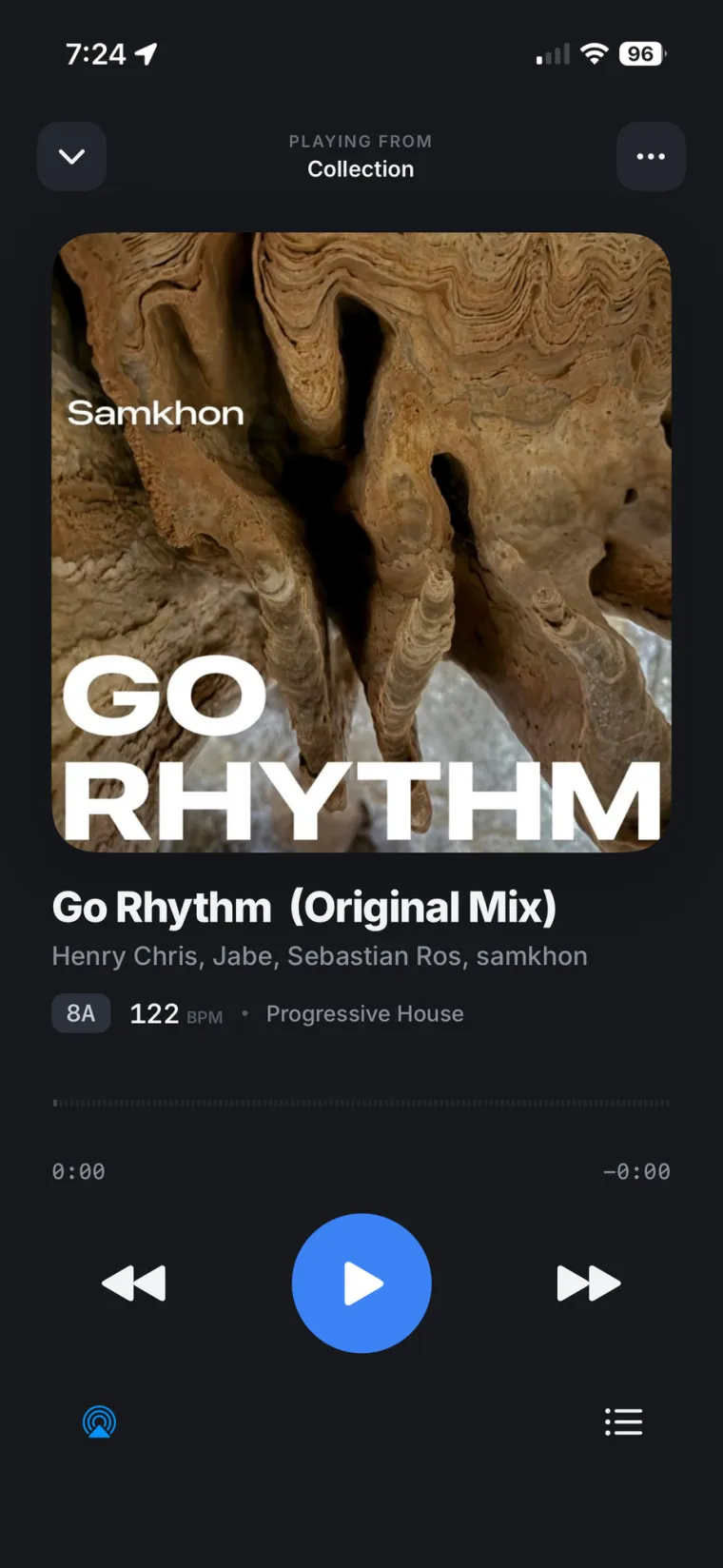
You can stream music without uploading it to a cloud if the files stay on your own computer and your phone reaches that computer directly. There are four ways to do it: copy files by hand, run a home server, use a cloud drive and accept the upload, or stream your DJ library straight from your computer. Each one has a price in time or in features. For a DJ, the question is also what happens to your playlists, BPM and key on the way.

Want your DJ library on your phone?
Rimeo streams your whole Rekordbox DJ library from your own computer to your iPhone or any browser. Nothing gets uploaded.
If your DJ library lives in Rekordbox, the shortest path is Rimeo, which streams it from your own computer to your phone and any browser. The rest of this guide shows the other options and where each one stops.
Why DJs do not want to upload their DJ library
A DJ library is usually big, and many of the files are large WAV or AIFF. Uploading all of that can take a very long time on a home connection. Then you keep paying for the space, and the copy in the cloud slowly drifts away from the real DJ library on your computer.
There is also a simpler reason. Many DJs just want their files to stay at home. The wish is not to share a collection with anyone, including a storage company.
How can you stream music without uploading to the cloud?
1. Copy files to the phone or a USB stick
This is the oldest way and it works. You pick tracks, copy them, and play them from the phone. Nothing is uploaded and nothing needs to be online.
The cost is your time. Playlists, BPM, key and ratings do not travel with a plain file copy unless the tags carry them. The phone copy is also stale the moment you add a new track at home. It is fine for ten tracks and painful for a whole DJ library.
2. Run a home server: Navidrome or Jellyfin
Self-hosted music streaming means a small server program runs on your own machine and your phone connects to it. Two common free choices:
- Navidrome. Its site says it is open source, free of charge, and offers a web interface plus compatibility with Subsonic and OpenSubsonic apps on iOS and Android. It runs on macOS, Linux and Windows, with Docker images too, and it streams virtually any audio format.
- Jellyfin. It is free software that lets you stream to any device from your own server. The Jellyfin project says it does not run servers for users, so the server is yours to set up and keep running.
These tools are good at what they do. They are built for general listening, though, and that shows when you point them at a DJ library. Jellyfin's music docs say one folder should contain one and only one album. A DJ folder full of mixed singles does not fit that model well. The same docs warn that FLAC files with embedded WebP images or ID3 tags may fail to play in Chromium based browsers or Firefox until you change a client setting.
Both servers build their view from file tags and folders. Your Rekordbox playlists, folders, history and play counts live in the Rekordbox database, not in the files. A general server will not show them to you. You also take on the setup: installing the server, scanning folders, and reaching it from outside your home network is your own project.
3. Use a cloud drive and accept the upload
Dropbox or Google Drive can hold your files and open them on a phone. This does not answer the question of this guide, because everything is uploaded. It also gives you a plain list of files, with no DJ playlists. If you use the Rekordbox cloud features, the upload is part of the deal. We cover what they sync, and what you give up, in this look at Rekordbox cloud alternatives.
4. Stream your DJ library from your own computer
The fourth way keeps the files where they are and adds the part DJs need. An app on your computer reads your Rekordbox DJ library directly and streams tracks to your phone or a browser. Nothing is uploaded to a cloud.
This is what Rimeo does. It reads your Rekordbox playlists, folders, play history, BPM, key, genre, artwork and play count, so what you see on the phone is the same DJ library you see at your desk. You open it in the Rimeo iPhone app, or in any browser. On iPad and Android the browser player is the way in.
Stream your DJ library, upload nothing.
Rimeo streams your Rekordbox DJ library from your own computer to your iPhone and any browser, and nothing is uploaded to a cloud. Your playlists, BPM and key come along, so it looks like the DJ library you already know.
Which option fits your DJ library?
Use this short check before you pick one.
- Ten or twenty tracks for a trip: copy them to the phone. It is the quickest.
- A general listening collection, and you like tinkering: a home server such as Navidrome or Jellyfin is a good fit.
- You want to keep Rekordbox playlists, BPM and key: pick something that reads the Rekordbox database, not just the folders.
- You are fine with uploads and a monthly bill: a cloud drive works, but the copy can drift from your real DJ library.
If you are still deciding how to get a Rekordbox DJ library to your phone at all, this overview compares every route. For step-by-step setup of the streaming route on an iPhone, see how to stream your Rekordbox library to your iPhone.
What streaming from your own computer cannot do
Streaming from your computer has one clear limit. The computer has to be on and online when you stream. If it is off, there is nothing to stream from. This is true for a home server too, and for every self-hosted setup.
The fix is to download in advance. In the Rimeo iPhone app you can download tracks or whole playlists while your computer is on, then play them with no signal. Offline works only in the iPhone app. The browser player on iPad, Android and desktop has no offline mode.
Away from home, you can also open the same DJ library through the browser, so you do not need to be on your home Wi-Fi. For that scenario, read how to access your Rekordbox library from anywhere.
Your DJ music, on your terms
The upload question is really about control. You built your DJ library over years. It sits on a drive you own, in a Rekordbox structure you know. The easiest way to keep that is to leave the files where they are and let your phone come to them.
Keep your own tracks one tap away.
Rimeo opens your Rekordbox DJ library on your phone straight from your computer, with no upload. Pick a playlist, download it to the iPhone app while your computer is on, and play it later with no signal.
Sources
FAQ
Can I stream music without uploading it to the cloud?
Yes. Keep the files on your own computer and stream from there with a home server such as Navidrome or Jellyfin, or with an app that reads your DJ library directly, like Rimeo. The computer has to be on while you stream.
What is self-hosted music streaming?
It means a server program runs on your own computer or home machine and your phone connects to it. Navidrome and Jellyfin are free examples. You set up and maintain the server yourself.
Can Navidrome or Jellyfin show my Rekordbox playlists?
Both build their library from file tags and folders. Rekordbox playlists, history and play counts are stored in the Rekordbox database, so you need a tool that reads that database to see them.
Can I listen to my DJ library when my computer is off?
Only tracks you downloaded in advance. In the Rimeo iPhone app you download tracks or playlists while the computer is on, then play them offline. Streaming the rest of the DJ library needs the computer on.