Rekordbox Device Library Corrupted? What It Means and How to Fix It
Rekordbox says the device library on your USB is corrupted? What that library holds, why it breaks and three ways to fix it before your next gig.


When Rekordbox says the device library on your USB is corrupted, it means the library it exported to the stick can no longer be read. That library is what a CDJ uses to list your tracks and playlists and to load your cue points. It is stored apart from the audio files, so your music is usually still on the stick. Before you let Rekordbox delete or rebuild anything, copy the PIONEER folder to your computer. Then re-export, restore a backup or repair the library, depending on where your playlists still exist.

Want your DJ library on your phone?
Rimeo streams your whole Rekordbox DJ library from your own computer to your iPhone or any browser. Nothing gets uploaded.
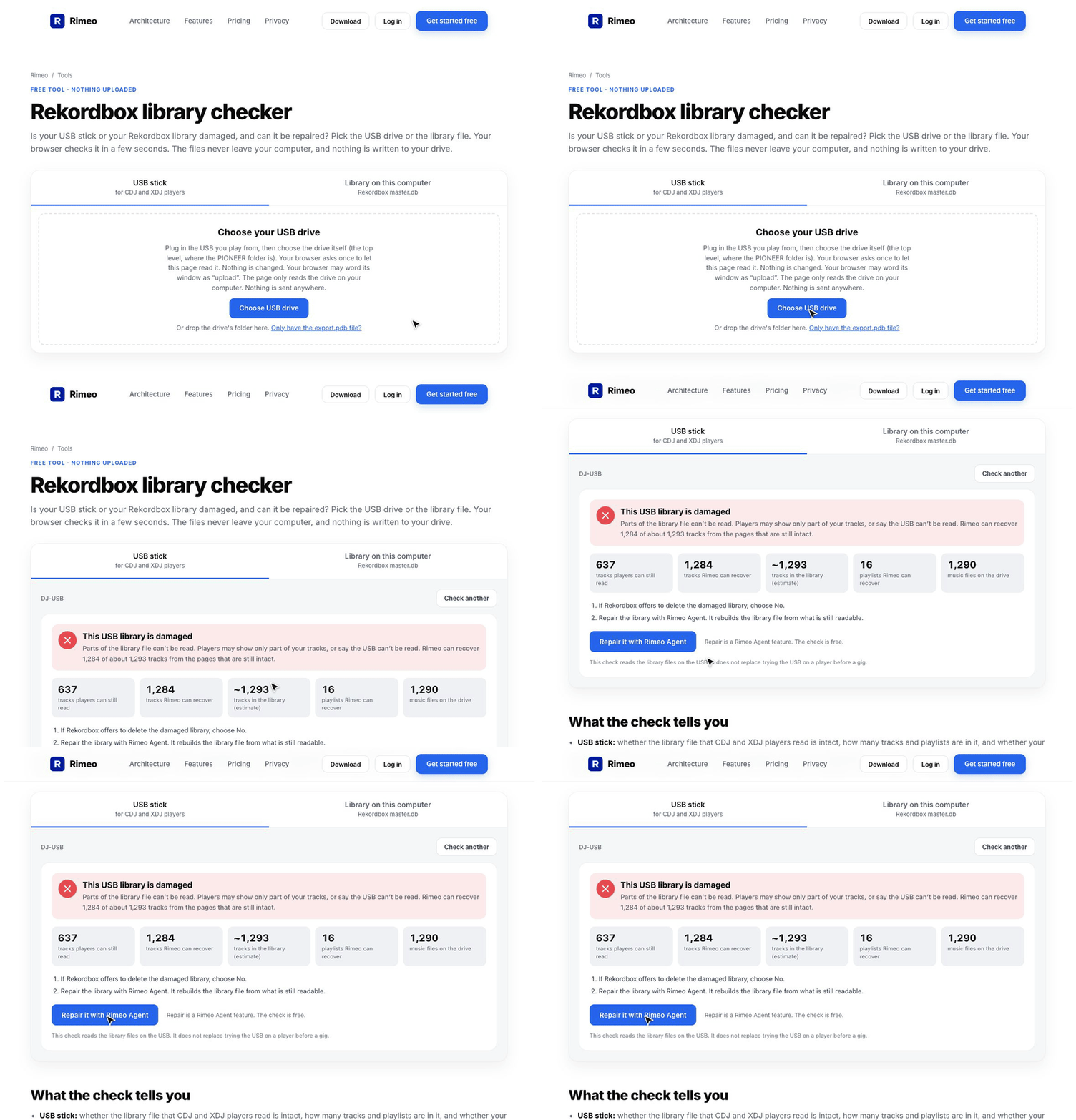
Rekordbox and the players word this warning in different ways, and the manuals don't quote it, so go by what it means rather than the exact text. If you want to know which case you are in before you touch anything, the Rimeo library checker reads the stick in your browser and tells you whether its library is damaged. The Rekordbox parts of this guide come from the official Device library backup guide, the USB Export Guide and the Rekordbox FAQ.
What the device library on a Rekordbox USB is
When you export tracks to a USB stick, Rekordbox copies more than the audio. The official backup guide explains that the BPM, key, waveforms and other analysis, plus management information such as cues and loops, are exported at the same time, and "This management information is called “Device library.”" The player reads it to show your playlists, waveforms and hot cues.
On the stick, the device library sits in the PIONEER folder, next to the Contents folder with your music. The main file is export.pdb in PIONEER/rekordbox. On a stick formatted on a Mac the folder can be hidden as .PIONEER: press Cmd+Shift+. in Finder to show it.
A newer stick can hold two libraries at once. The USB Export Guide says the classic Device Library and OneLibrary (formerly Device Library Plus) "will coexist within the USB storage device" and are managed separately. Which one matters depends on the player. According to the USB Export page, the CDJ-3000X, CDJ-1500X, OPUS-QUAD, OMNIS-DUO, XDJ-AZ and XDJ-AN read only OneLibrary, while the CDJ-3000, CDJ-2000NXS2, XDJ-XZ, XDJ-RX3 and older models read only the Device Library. If you play on a OneLibrary player and your playlists are missing, read our Rekordbox export guide first: that is often a library type problem rather than a damaged file.
Why a device library gets corrupted
Rekordbox's documents don't list causes, but they spell out the rules that protect the library. Most damaged sticks broke one of them:
- The stick came out during a transfer. The manual says the device "must not be disconnected while the data is transferring". To stop an export, click X next to the progress bar instead.
- The stick came out without being ejected in Rekordbox. The manual asks you to click the remove button next to the device in Rekordbox before you disconnect the stick. Pulling it out without that is asking for trouble.
- The stick itself is failing. The backup guide puts it plainly: "If your USB storage device is damaged or lost, the Device library may also be lost."
A crash in the middle of an export can do the same: the library file stays half written while the music files look fine.
Before you fix anything, copy the PIONEER folder
If Rekordbox offers to delete or initialize the device library, click Cancel. That clears the playlists on the stick, and for a stick whose playlists exist nowhere else there is no way back. This guide to the delete prompt explains why.
- Close Rekordbox.
- Open the stick in Finder or File Explorer and copy the whole PIONEER folder to your computer. Put the date in the folder name.
- Play two or three tracks straight from the stick. If files won't copy or open, the stick is failing, so plan to move to a new one.
That copy keeps the damaged state, and a repair can still read from it later. It takes a minute and leaves every option open.
Find out what is wrong before you change the stick
The Rimeo library checker reads your USB in the browser and tells you whether the device library is damaged and whether it can be repaired. Your files stay on your computer, and nothing on the stick changes.
Three ways to fix a corrupted device library
One question picks the fix: where do your playlists still exist?
1. Your Rekordbox library on the computer has everything: export again
This is the easy case, because the stick only holds a copy. In Export mode, drag your playlists onto the stick under Devices, or right-click a playlist and choose Export Playlist. Wait for the progress bar to finish, then eject the stick with the button next to it.
If Rekordbox still can't work with the damaged library, export to a second stick instead of wiping the first one. Format the new stick as FAT32, or as exFAT if every player you use is on the exFAT list in the Rekordbox FAQ. Keep the damaged stick untouched until the new one plays on a CDJ. Formatting, as the OneLibrary export guide warns, "will erase all data, including non-rekordbox files."
2. You use Rekordbox Device library backup: restore it
Rekordbox has its own backup for the libraries on your sticks. The Device library backup FAQ lists what it needs: Rekordbox 6.5.3 or later, a Professional plan subscription and Cloud Library Sync turned on. When it is set up, Rekordbox backs up a stick's library each time you remove the stick from the computer, or when you choose Backup now.
- Connect the stick you want to restore.
- Under Devices, right-click the stick and choose Device library restoration.
- Select the backup, click Restore to device, then OK.
- Leave the stick in until the restore is complete.
Know the limits before you count on it. Only the latest backup is kept for each stick. Music files are not in the backup: Rekordbox copies the same files back from your computer or the cloud, so tracks you deleted or moved won't return. The restore overwrites the device library on the stick, and it works only on a stick with the same file system as the one you backed up. Our Rekordbox backup guide covers the rest.
3. The playlists live only on the stick: repair the library
This is the hard case: playlists built for one gig, cues set on the players, or a stick from a computer you no longer have. Exporting again can't bring those back, and a delete or a format removes them for good.
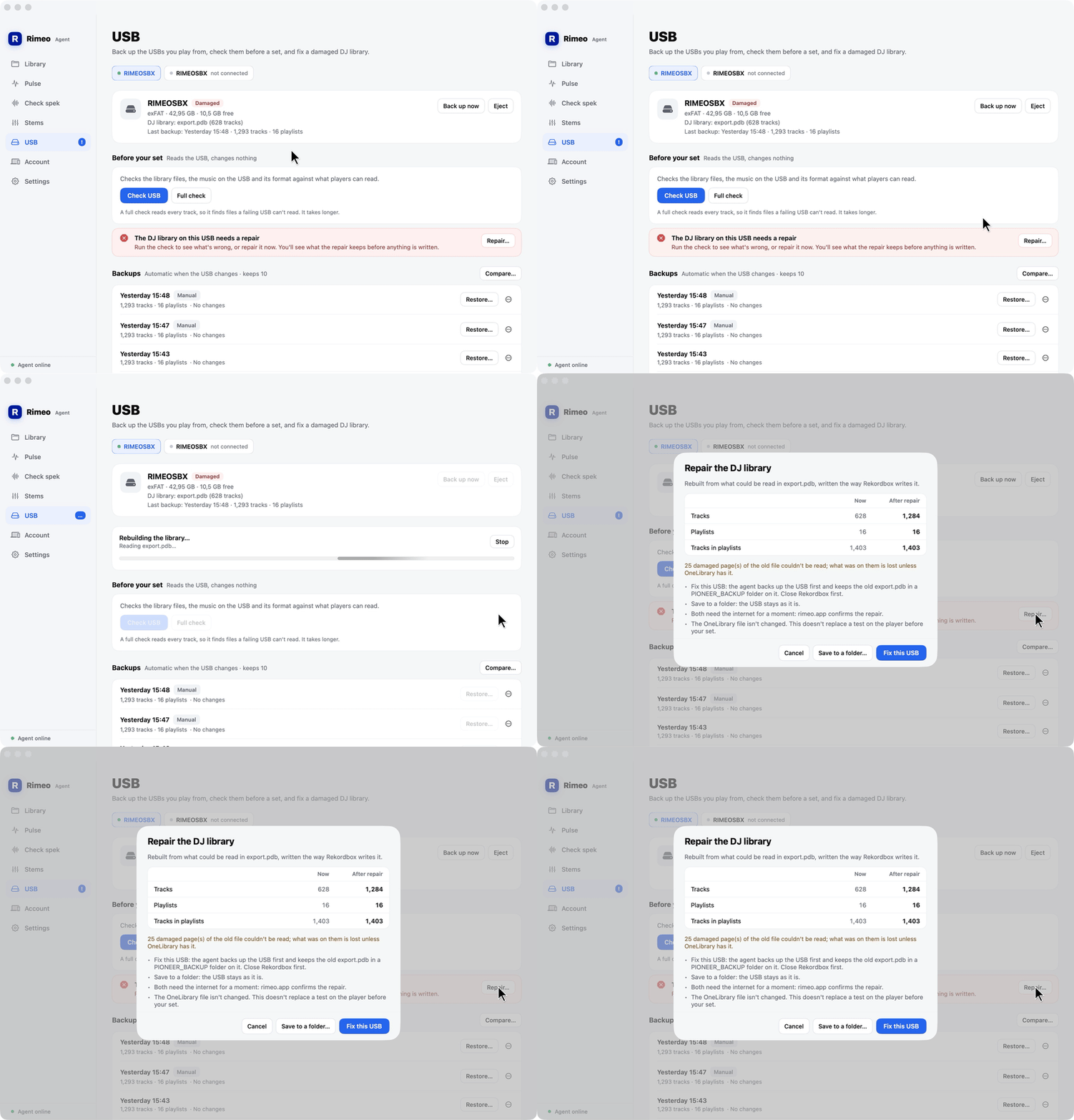
Rimeo Agent, the Rimeo app for Mac and Windows, can repair the library on the stick. With Rekordbox closed, it reads the damaged library and shows you what the repair brings back before anything is written. Then it saves a copy of the stick's current library, writes a repaired export.pdb and checks the result. It restores what can still be read, so a badly damaged stick may not come back in full. If your CDJ shows 0 tracks rather than a warning in Rekordbox, this walkthrough covers that symptom step by step.
How to keep it from happening before your next gig
- Eject the stick in Rekordbox every time, and never pull it out during a transfer.
- After each export, copy the PIONEER folder to your computer with the date in the name.
- Carry a second stick with the same export.
- Test the stick on a player, or at least check it, before you leave home.
Rimeo Agent can take over the copying and the checking. It backs up each stick you play from whenever its library changes, keeps the last 10 copies and always keeps the last healthy one. Its Before your set check reads the library files, the music and the format, and changes nothing on the stick. The full routine is in How to Check and Back Up Your Rekordbox USB Before a Gig.
Your playlists are worth more than the stick
A USB stick is cheap. The playlists, cues and loops on it took hours to build. When the device library breaks, the safe order is always the same: keep a copy, find out what is damaged, then choose to export again, restore or repair.
See what can come back without wiping the stick
Rimeo Agent on your Mac or Windows PC repairs a damaged device library and shows what comes back before it writes anything. It also backs up every USB you play from, so the next time a stick fails you restore it instead of rebuilding it.
Sources
FAQ
Is my music lost if the Rekordbox device library is corrupted?
Usually not. The device library is the management data Rekordbox exports with your tracks: analysis, cues, loops and playlists. The audio files are stored separately on the stick, usually in the Contents folder, so they often survive when the library breaks.
Can I fix a corrupted device library without a backup?
If your Rekordbox library on the computer still has the playlists, export them again, ideally to a second stick. If the playlists exist only on the stick, the library has to be repaired. Rimeo Agent shows what a repair brings back before it writes anything.
Does Rekordbox Device library backup keep older versions?
No. The Rekordbox FAQ says only the last exported state is saved for each USB stick, and older backups are deleted automatically. The backup also doesn't include the music files themselves.
Why can't I restore my Device library backup to a new stick?
The new stick must use the same file system as the one you backed up. If the file systems differ, Rekordbox won't let you select that backup, so check the format of the new stick first.
What is the difference between Device Library and OneLibrary?
They are two library formats Rekordbox can write to the same stick, managed separately. Players such as the CDJ-3000X, OPUS-QUAD and XDJ-AZ read only OneLibrary. The CDJ-3000, CDJ-2000NXS2 and XDJ-RX3 read only the Device Library.