CDJ Not Reading USB? What to Check, in Order, Before Your Set
CDJ not reading your USB? Five checks at the booth, then file system, partitions and the Rekordbox library at home, from the CDJ-3000, 3000X and NXS2 manuals.


When a CDJ is not reading your USB, the cause is often one of five things: the stick isn't plugged straight into the player, the file system is one the player can't read, the port cut the power, the stick has more than one partition, or the player mounts it but finds no Rekordbox library. Work through them in that order. The first checks take seconds at the booth, the last ones need your computer at home.

Want to build playlists on your phone?
Rimeo opens your Rekordbox DJ library on your iPhone. Make a playlist anywhere and Sync puts it into Rekordbox.
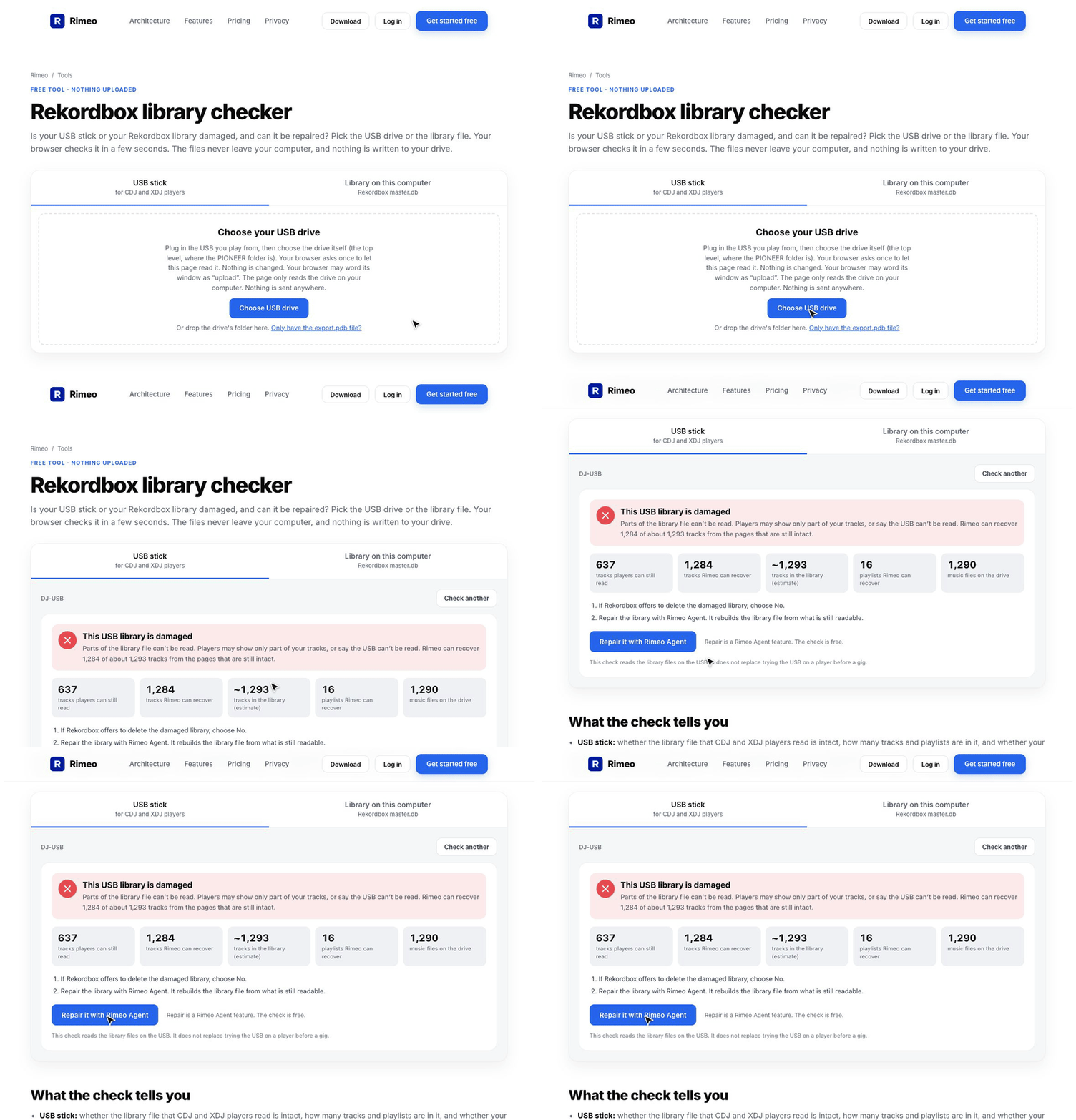
This guide follows the troubleshooting sections of the official CDJ-3000, CDJ-3000X and CDJ-2000NXS2 manuals and the Rekordbox FAQ. If the stick is acting up at home, the Rimeo library checker can tell you in your browser whether the Rekordbox library on it is damaged, before you reformat anything.
First, which problem do you have?
Two different things get called "not reading":
- Nothing shows up, or the USB indicator blinks. The player can't mount the stick. This guide is for you.
- The stick shows up, but the library doesn't. You see folders instead of playlists, 0 tracks, or missing playlists. The player reads the stick but not the Rekordbox library on it. Jump to the last section.
At the booth: five checks, in this order
- Plug it in all the way, straight into the player. The CDJ-3000 manual starts its list for "The unit does not recognize a connected USB device" with "Check the USB device is connected properly" and "You cannot use a USB hub. Connect the USB device directly to the unit." The CDJ-3000X manual adds: "Do not use an extension cable when connecting a USB device to the unit or communication may be interrupted."
- Restart the player. Both the CDJ-3000 and CDJ-2000NXS2 troubleshooting lists end with turning the unit off and on again.
- Look at the USB indicator. If it blinks, the port detected too much current and cut the power. The CDJ-3000X manual says to disconnect the device and "Do not use the USB device with the unit again." If the player still won't talk to any stick after that, turn it off and on.
- Try the next player. If the indicator didn't blink and the stick works on another player of the same model, the problem is the port or that unit, and you can play from the working side while someone looks at it. A player of a different model can read other file systems and library types, so a stick that works on one may still fail on the other.
- Switch to your second stick. If no player reads the stick, stop troubleshooting and play from the spare. The rest of the fixes need a computer.
Find the problem at home instead of at the booth
The Rimeo library checker reads your USB in the browser and tells you whether the Rekordbox library on it is healthy or damaged, and whether a damaged one can be repaired. Your files stay on your computer.
At home: check the file system
The file system is a common reason a stick works on your computer and not on a CDJ. The Rekordbox FAQ answers the "not recognized" question with exactly this: "Your device may be formatted in a file system that is not supported by the DJ equipment."
What the manuals list for USB devices:
- CDJ-3000X: FAT16, FAT32, exFAT and HFS+. NTFS isn't supported.
- CDJ-3000: the manual lists FAT16, FAT32 and HFS+. The Rekordbox FAQ, as of July 2026, puts the CDJ-3000 on its exFAT list. If an exFAT stick fails on a CDJ-3000, use FAT32.
- CDJ-2000NXS2: FAT16, FAT32 and HFS+. NTFS is not supported.
- XDJ-AZ: FAT16, FAT32, exFAT and HFS+.
exFAT is the trap. According to the Rekordbox FAQ, only the CDJ-3000X, CDJ-1500X, CDJ-3000, OPUS-QUAD, OMNIS-DUO, XDJ-AZ, XDJ-AN, XDJ-XZ and XDJ-RX3 read it. A stick formatted as exFAT on a new computer will work on those and fail on a CDJ-2000NXS2. NTFS, the default for many large drives on Windows, works on none of these players.
To check the format, open Disk Utility on a Mac and select the stick, or right-click the drive in File Explorer on Windows and choose Properties. If you play on mixed gear in different clubs, FAT32 is the safe choice. The OneLibrary export guide lists FAT32 and exFAT for Windows, plus HFS+ on a Mac. Formatting erases the stick, so copy the PIONEER folder to your computer first and export from Rekordbox again afterwards.
At home: partitions, card readers and the stick itself
- Only USB mass storage devices work. The CDJ-3000X manual says the unit plays files "saved on USB mass storage class devices" and warns that "Some USB devices may not work properly with this unit."
- Only the first partition counts. The CDJ-2000NXS2 and XDJ-AZ manuals say that on a drive with several partitions only the first one can be used, and a partition with a Rekordbox library gets priority. Keep one partition per DJ stick.
- Card readers and optical drives are out. The manuals list external DVD and CD drives as unsupported, and the CDJ-2000NXS2 and XDJ-AZ manuals warn that USB devices with flash card readers may not work.
- Big sticks take time. The CDJ-3000X manual notes that "It may take some time for the unit to read a device when it contains many folders and files." Give a large drive a moment before you decide it failed. Within a folder, the player shows up to 10,000 files.
None of the three CDJ manuals gives a maximum USB capacity. The 32 GB figure in the CDJ-3000 manual is for SD cards, not USB.
When the CDJ reads the stick but your library is missing
If the stick mounts but you see folders instead of playlists, the player found no Rekordbox library it can read. That has its own causes, from files copied by hand to a library type your player doesn't support, covered in Rekordbox Database Not Found on USB?. If the player shows 0 tracks or empty playlists, the library file on the stick is likely damaged: see the 0 tracks walkthrough and our guide to a corrupted device library. Copy the PIONEER folder to your computer before you try any fix.
A pre-gig routine so the stick reads the first time
- Check the file system against every player you will play on.
- Export from Rekordbox, wait for the transfer to finish, then eject the stick with the button next to it in Rekordbox.
- Copy the PIONEER folder to your computer with the date in the name.
- Load the stick on a player if you can, and play a track from the start and the end.
- Carry a second stick with the same export, formatted as FAT32.
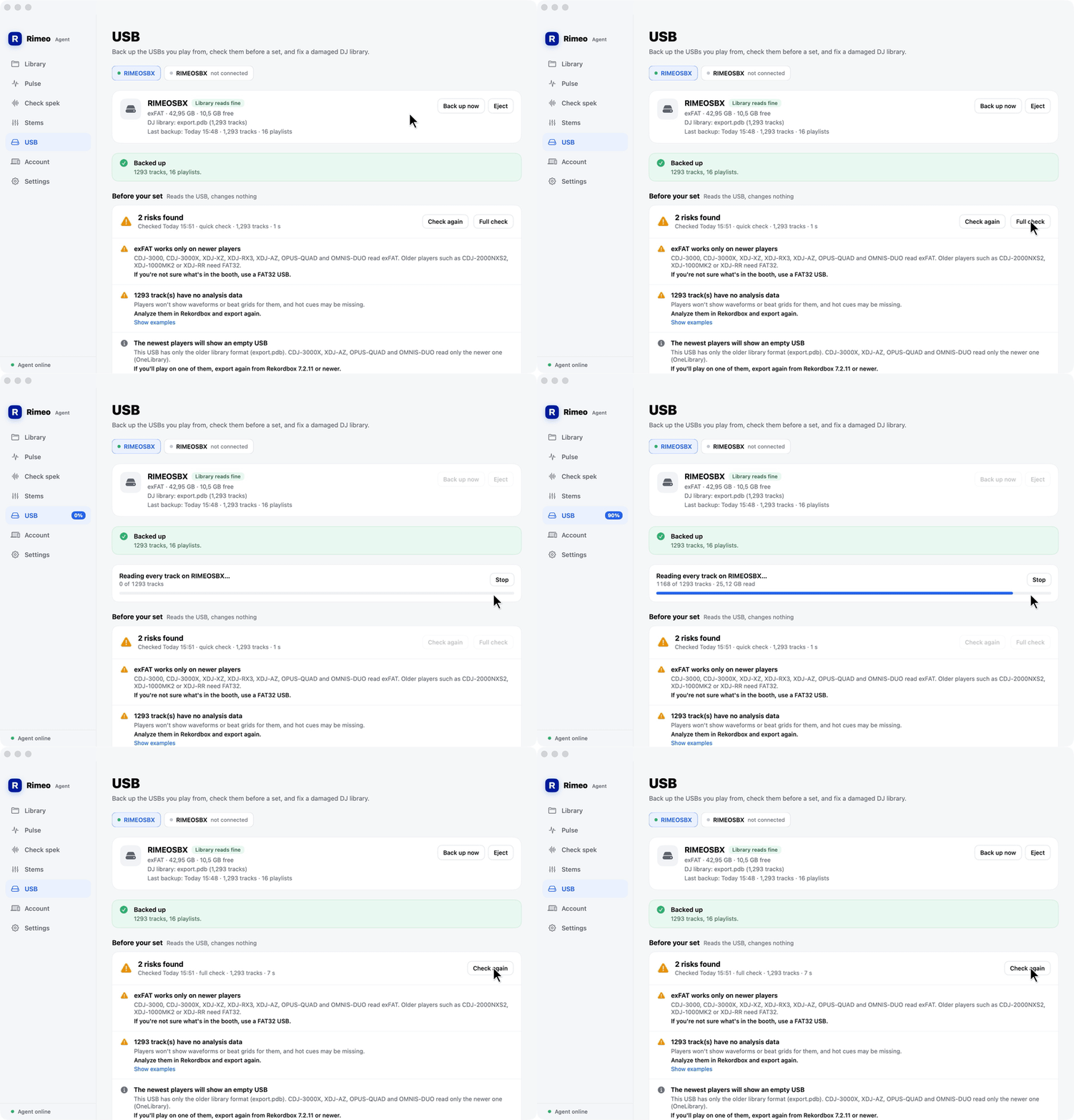
Rimeo Agent, the Rimeo app for Mac and Windows, can run this check for you. Its Before your set check reads the library files, the music on the stick and its format against what players can read, and changes nothing on the stick. A full check reads every track from start to end, which finds files a failing stick can no longer deliver. More on the routine in How to Check and Back Up Your Rekordbox USB Before a Gig.
Find out before you walk into the booth
A CDJ that won't read your stick is rarely a mystery. It is a format, a port, a partition or a library. The format, the partitions and the library are easy to check at home, and the port and the plug take seconds at the booth. The hard part is finding out with the crowd waiting, which is why the check belongs in your prep.
Know your USB will load before you leave home
Rimeo Agent on your Mac or Windows PC checks a stick the way the players will read it: the format, the library files and the music, and a full check reads every track. It also keeps a backup of each stick you play from, so a failed stick turns into a quick restore.
FAQ
Why is my CDJ not reading my USB?
Most often the stick is on a hub or not fully plugged in, it uses a file system the player can't read (NTFS on any CDJ, exFAT on older models), the port cut the power, or the library sits on a second partition. If the stick mounts but shows folders or 0 tracks, the Rekordbox library is missing or damaged.
Does the CDJ-3000 read exFAT?
The CDJ-3000 manual lists FAT16, FAT32 and HFS+, while the Rekordbox FAQ, as of July 2026, includes the CDJ-3000 in its exFAT list. If an exFAT stick fails on a CDJ-3000, format the stick as FAT32 and export again.
Can I use a USB hub or extension cable with a CDJ?
No hub: the CDJ-3000, CDJ-3000X and CDJ-2000NXS2 manuals all say USB hubs can't be used. The CDJ-3000X manual also warns against extension cables, because communication may be interrupted. Plug the stick straight into the player.
Why does the USB light blink on my CDJ?
The player detected too much current through the USB port and cut the power to the device. The CDJ-3000X manual says to disconnect the device and not use it with the unit again, and to turn the player off and on if it still won't communicate.
Is there a maximum USB size for a CDJ?
The CDJ-3000X, CDJ-3000 and CDJ-2000NXS2 manuals don't give a maximum USB capacity. The 32 GB figure in the CDJ-3000 manual is for SD cards. A drive with many folders and files can take longer to read.